-1.png?width=100&height=100&name=GTM%20Wranglers%20(1)-1.png)

Have you ever set up an integration with a MarTech platform, set up a series of integration points with Marketo custom activities and/or Marketo custom objects, and asked yourself the question…
“I wish I could push some of this data into my CRM, or… into Interesting Moments.”
Until recently, the technical possibilities using out of the box Marketo capabilities were quite limited. A standardized list of Trigger Tokens for Interesting Moments was always available (you should use them! They are very powerful), but these were very standardized.
However, this limitation has changed. Now, the “trigger tokens” have been opened up to include custom activities and custom objects.
How do they work?
I am going to talk specifically to Custom Activity triggers, because this is the use case that the functionality was built around. However, I have discovered that there are some applications where you can use the same functionality around “Added to Custom Object” triggers, but approach these use cases with caution.
First, build and approve your custom activity. Generally, these custom activities are built to support a specific MarTech integration (the “idea” behind the Idea was with Vidyard custom activities). The example I will share involves activities pushed from an interactive demo platform called Storylane (not promoting… only using it as an example).
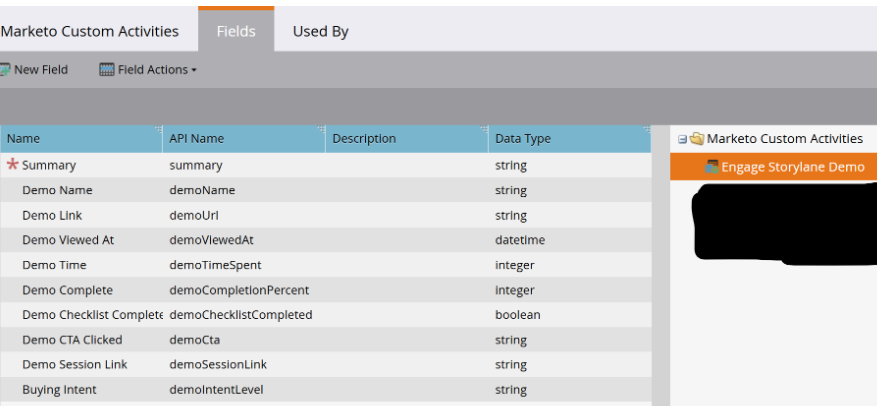

Each Custom Activity is given a name. The name of the custom activity created is “Engage Storylane Demo.” Each of the fields in the configured activity, upon custom activity approval, can be used in a token.
To build a smart campaign that implements a custom activity trigger token for an interesting moment, follow these steps:
- Create a smart campaign to execute your custom activity trigger.
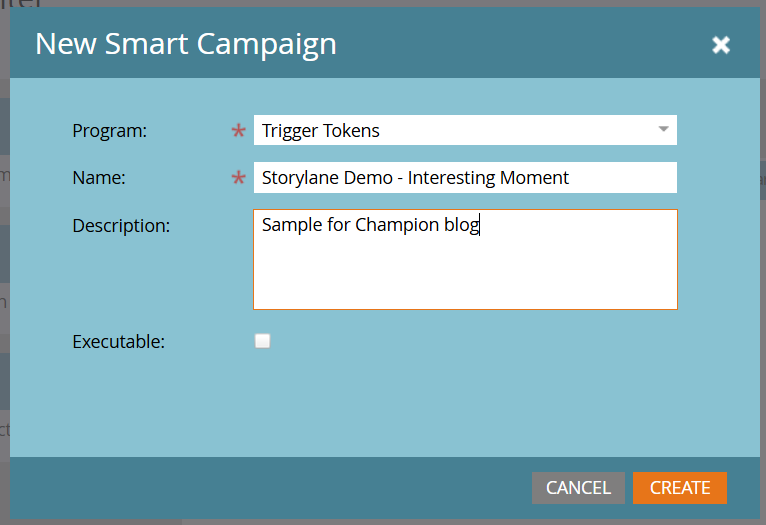

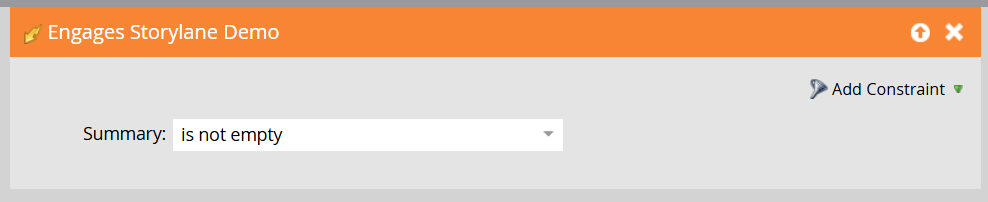
- Use the custom activity as the trigger in your smart campaign. Note that trigger tokens are invalid in recurring batch campaigns.
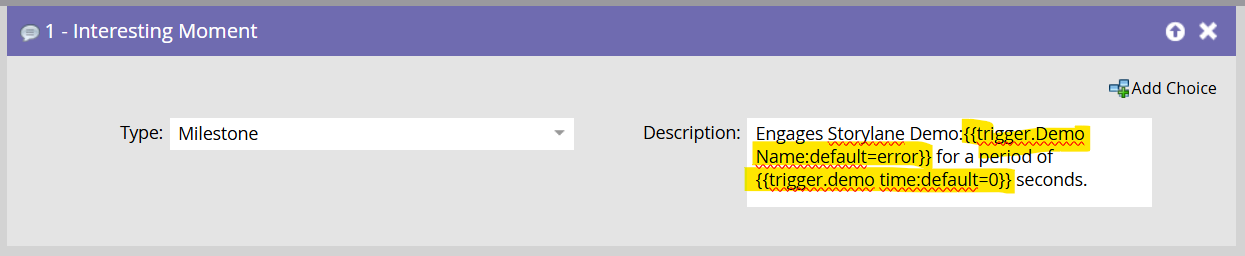
- Use the syntax inside your token. For this example, we will create an interesting moment with the Demo Name and the Demo Time values from the custom activity. Note: Field names should be considered to be case-sensitive, and may not work as expected if you don’t use the specific case you approved in your custom activity definition.
- Activate your smart campaign and review results.
To build a smart campaign that implements a custom activity trigger token to update a value in your Marketo database, conduct the following steps.
- Create a smart campaign to execute your custom activity trigger.
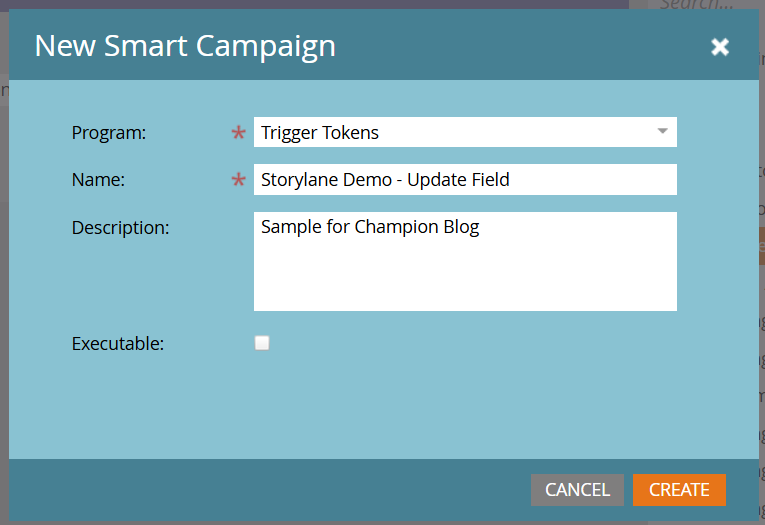
- Use the custom activity as the trigger in your smart campaign as before.
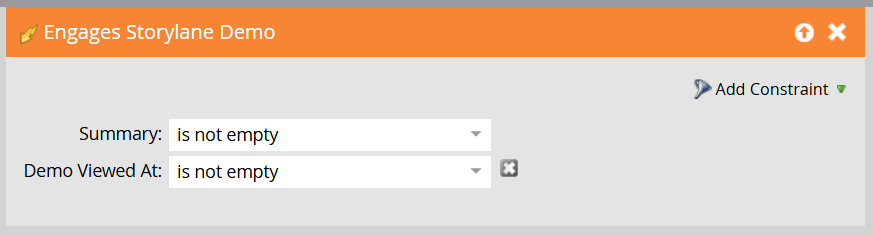
- Use the syntax inside your token. For this example, we will stamp the demo name and the viewed date (Demo Viewed At) into a notes field.

- Activate your smart campaign and review results.
- Note the resulting content in your notes field in the Results tab.
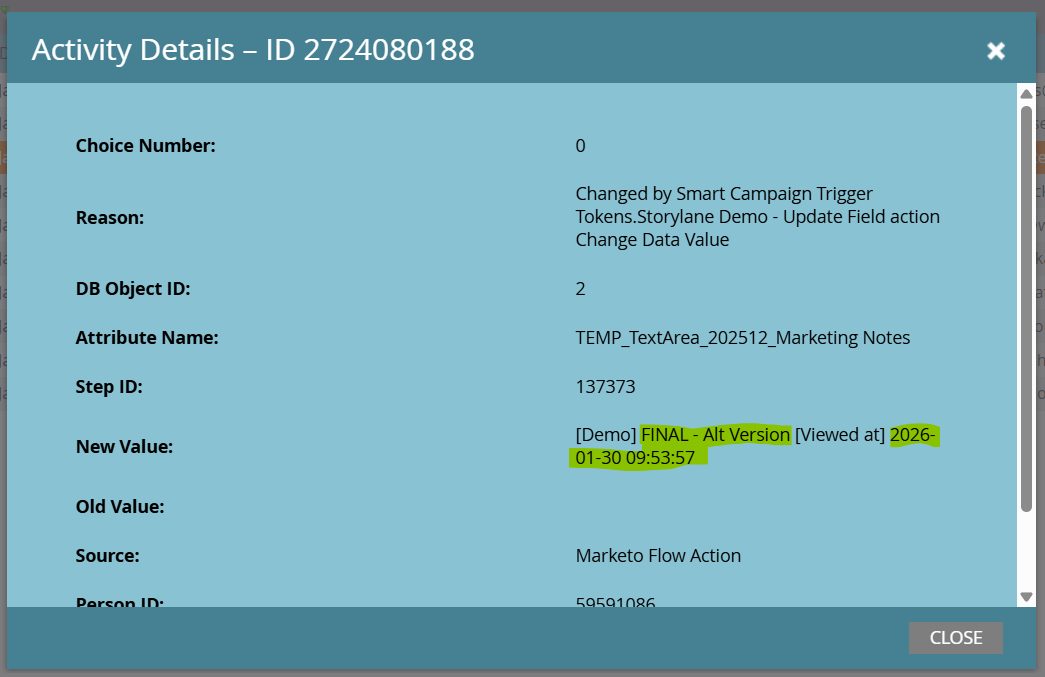
This new functionality can be very useful to extend the insights you receive from the MarTech integrations you integrate with Adobe Marketo Engage with insights you deliver inside of Interesting Moments, as well as leveraging this data in key fields in your Marketo database that are used to segment audiences and build dynamic content.
As I mentioned earlier, there is limited functionality with Custom Objects. Based on the testing for the trigger tokens I have conducted to-date, here are the limitations you should consider if you want to use trigger tokens with your custom objects.
- Only the Added To trigger is able to leverage the fields in your Custom Object within trigger tokens. The “is Updated” trigger (if this is enabled in your instance) does not allow you to leverage the field detail inside of your custom object.
- Be sure that any field you want to reference is filled out with the initial record creation of your custom object, as these are the only data events that will be “trigger-ed.” Any data updates made after record create will not be available.
- Test, test, test your workflow prior to launching your workflow. Nothing is more embarrassing than discovering that a triggered workflow isn’t delivering the data you desire.
- If you want Adobe to expand this functionality to include Custom Object updates, please upvote this idea.
I hope you find this new feature as exciting as I do. Happy marketing!



Comments